How to set up a proxy pool
Routing exports through your own proxies unlocks higher volume and region control. Here's how to create a proxy pool, bulk-import your proxies, and use it on any export.
Routing your exports through your own proxies is the single best way to get the full potential out of ExportComments — more headroom for large jobs, fewer rate-limit hiccups, and control over which region your requests come from. Here's how to set one up in a couple of minutes.
Why route exports through a proxy
When every request goes out from the same address, busy platforms throttle you fast. Spreading requests across a pool of proxies — ideally close to the audience you're exporting — keeps jobs running smoothly and lets you pull far more data per export.
- Higher volume — large comment and review exports complete without tripping rate limits.
- Better reliability — if one proxy is slow or blocked, the pool rotates to another.
- Region control — a proxy near the source is strongly recommended for Facebook exports.
- Your providers, your choice — bring proxies from any provider you like (Bright Data, Oxylabs, Smartproxy, your own servers — anything).
Proxy pools are a paid feature, available on the Premium and Business plans.
How to set up a proxy pool — step by step
Step 1: Open the Proxy Pools page
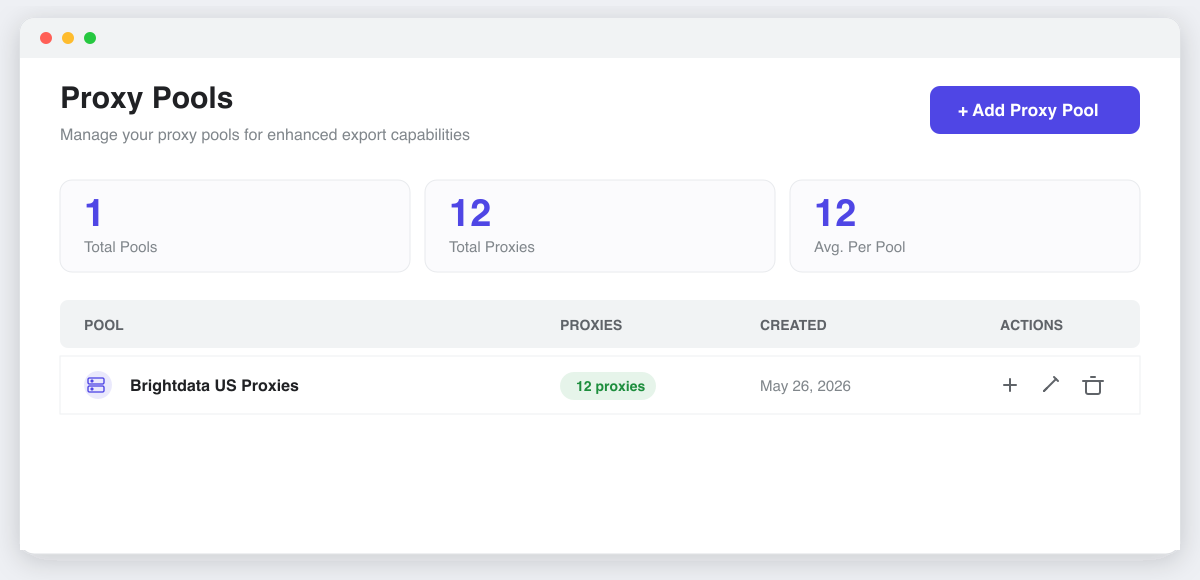
Sign in, open your account menu, and go to Proxy Pools (under your profile at /user/proxies). This is where every pool you create lives, with a quick count of total pools and proxies.
Step 2: Create a pool
Click + Add Proxy Pool, give it a clear Pool Name (e.g. “Bright Data US Proxies”), and save. A pool is just a named group of proxies — create separate pools for different providers or regions so you can pick the right one per export.
Step 3: Add your proxies (bulk import)
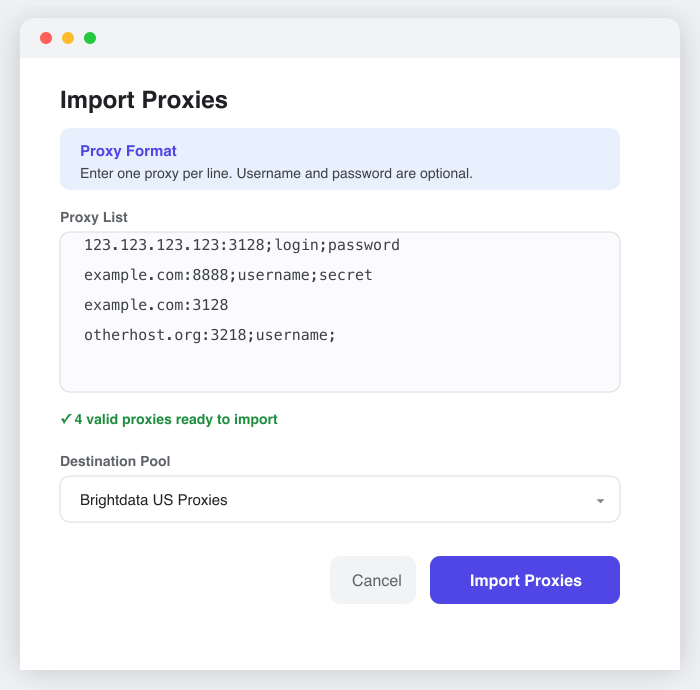
Open your new pool and choose Import Proxies. Paste one proxy per line — username and password are optional. You can import up to 1,000 proxies at once, and the form shows how many valid proxies it detected before you confirm.
Step 4: Select the pool on your export
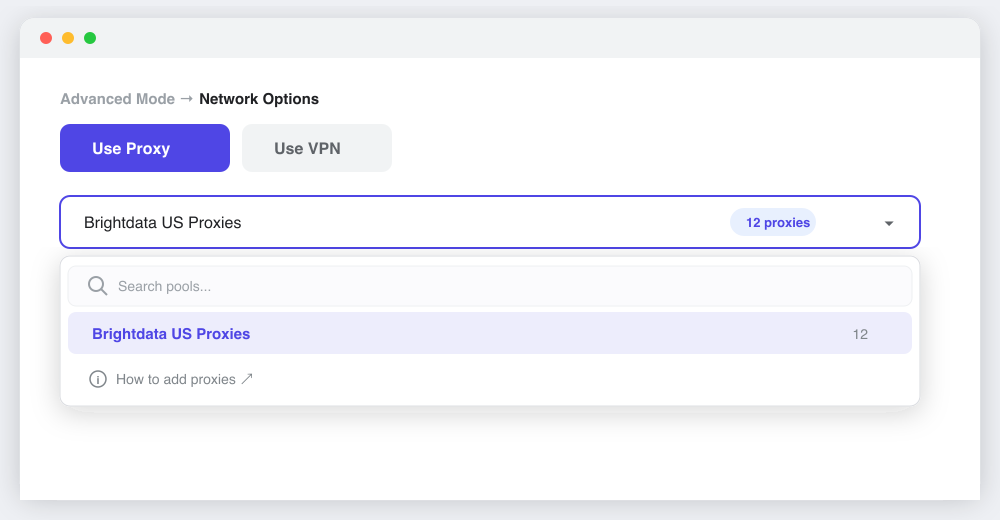
Back on the export form, paste your URL and open Advanced Mode → Network Options. Switch on Use Proxy and pick your pool from the Select proxy pool dropdown — it shows each pool's proxy count. Then click Start Export Process. ExportComments rotates through the pool automatically for the duration of the job.
Proxy line format
Each line is address:port followed by optional ;username;password:
123.123.123.123:3128;login;password— authenticated proxyexample.com:8888;username;secret— authenticated by hostnameexample.com:3128— no authenticationotherhost.org:3218;username;— username only
To pin a protocol, prefix the line — http://, https://, socks4:// or socks5:// (e.g. socks5://192.168.1.1:1080;user;pass). Without a prefix, the proxy is treated as HTTP.
Supported proxy types
- http — standard HTTP proxy
- https — secure HTTP proxy
- socks4 — SOCKS4
- socks5 — SOCKS5 (with authentication)
Proxy or VPN — which should I use?
The same Network Options panel offers a Use VPN tab as an alternative. Use a proxy pool when you have your own proxies and want rotation and volume. Use the built-in VPN when you just need requests to originate from a specific country and don't want to source proxies yourself. You pick one or the other per export, not both.
Use it responsibly
A proxy changes where your requests come from — it doesn't make you anonymous. For login-gated exports you're still sending your own session cookie, which identifies your account (see how to get your session cookies). Blasting thousands of actions through a proxy will still look like suspicious behavior and can get an account flagged. Keep exports reasonable, and for Facebook in particular, choose a proxy near the content's region.
Plan limits & API access
Results per export by plan: Free 100 / Personal 5,000 / Premium 50,000 / Business 250,000. See Pricing. You can also manage pools and route jobs through the REST API: create a pool with POST /v1/proxies (a name plus a newline-separated proxy list), then pass its UUID on any job via options.pool.
FAQ
- Do I need my own proxies?
For a proxy pool, yes — you bring proxies from any provider. If you'd rather not source any, use the built-in VPN option instead for region control. - How many proxies can a pool hold?
You can bulk-import up to 1,000 proxies at a time, and a pool can hold as many as you need across imports. - Can I keep separate pools for different regions?
Yes — that's the recommended setup. Name pools by provider or region and select the right one per export. - What happens if I delete a pool?
All proxies in it are removed and any jobs that referenced it fall back to the default proxies. Deletion can't be undone. - Does a proxy hide who I am?
No. It changes your request origin, but authenticated exports still use your own session cookie, which identifies your account. Use it responsibly. - Exporting many URLs at once?
Bulk URL upload processes each URL as a separate export and bundles the resulting files into one ZIP (one file per URL). Your selected proxy pool applies across the batch.